





How to connect PostHog and InsForge
Contents
InsForge is a backend-as-a-service for AI-built apps. This tutorial walks you through linking a PostHog project from the InsForge dashboard, using the embedded analytics views, and sending events from your app with the PostHog SDK.
The integration uses PostHog's provisioning API. InsForge documents their side in their setup guide.
Prerequisites
- An InsForge project
- A PostHog account (optional – InsForge can create one for you during setup)
Step 1: Connect PostHog in InsForge
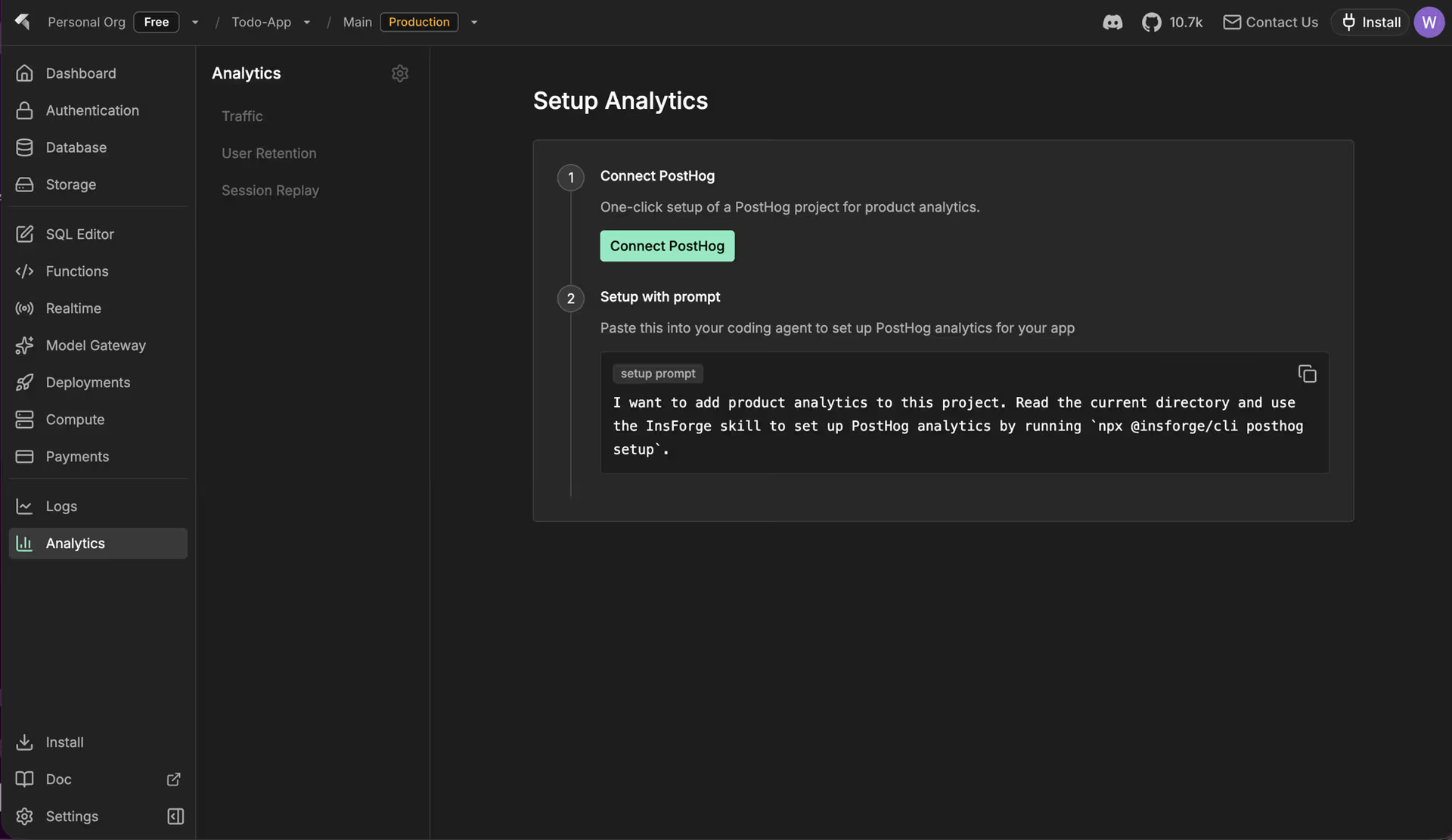
- Open your InsForge project and go to the Analytics tab.
- Click Connect PostHog.
Complete the connection flow:
- Existing PostHog account: approve the OAuth consent screen, choose the organization and project, then return to InsForge. The page reloads when the link is ready.
- New to PostHog: InsForge provisions a PostHog project via the provisioning API. You receive a welcome email to set a password, but you can use embedded analytics in InsForge before signing in to posthog.com.
Open the gear icon and Analytics Config to copy your project token, host, and project ID when you need them elsewhere.
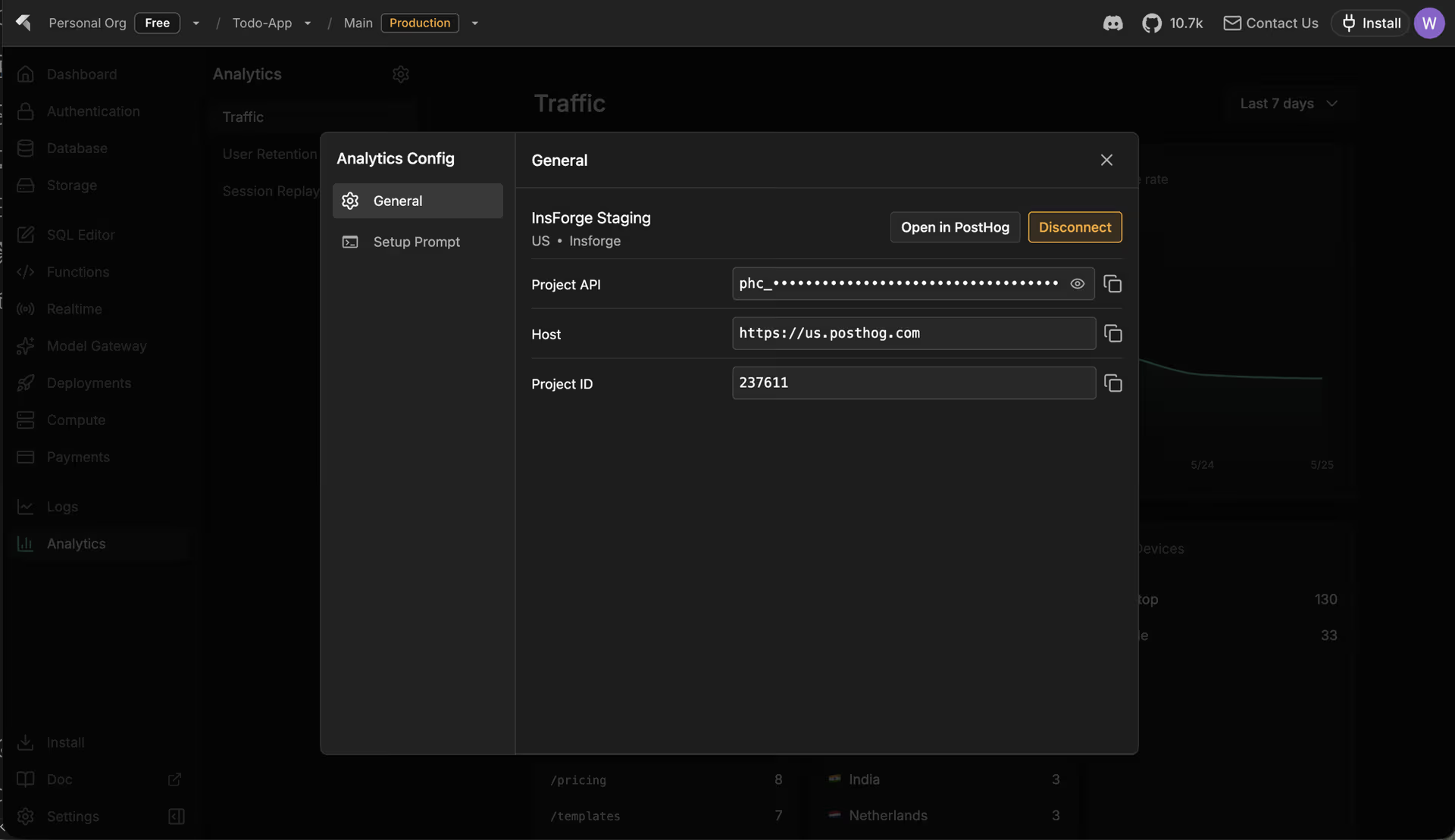
Step 2: Use embedded analytics
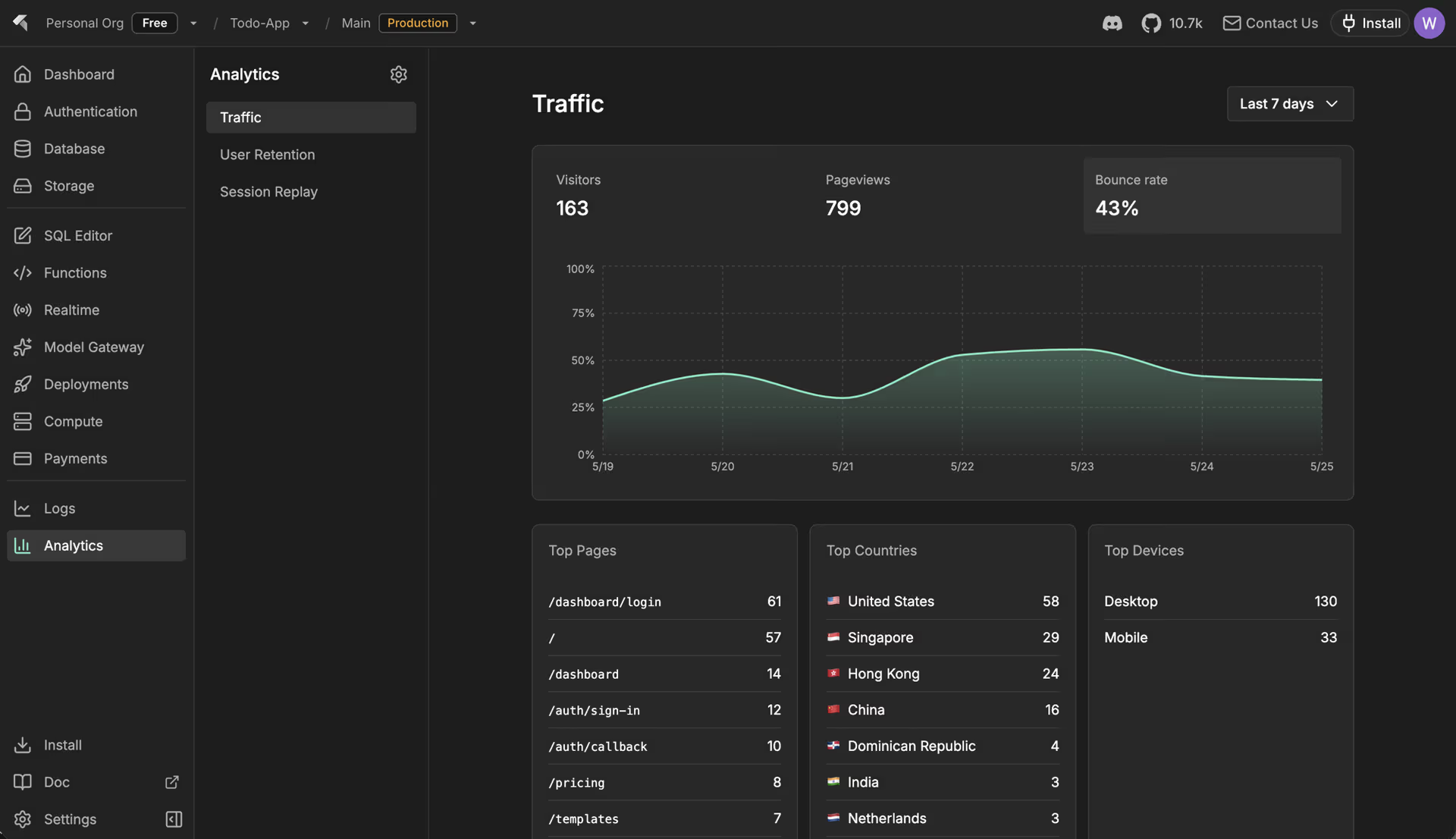
After connection, the Analytics tab shows PostHog data via the /query API – the same data as on posthog.com, rendered inside InsForge.
- Use the time-range selector at the top to filter every card on the page.
- Click Open in PostHog to open the full PostHog app for deeper analysis.
Traffic
The Traffic tab includes visitor, pageview, and bounce-rate KPIs with trend charts, plus breakdowns for top pages, countries, and device types.
User retention
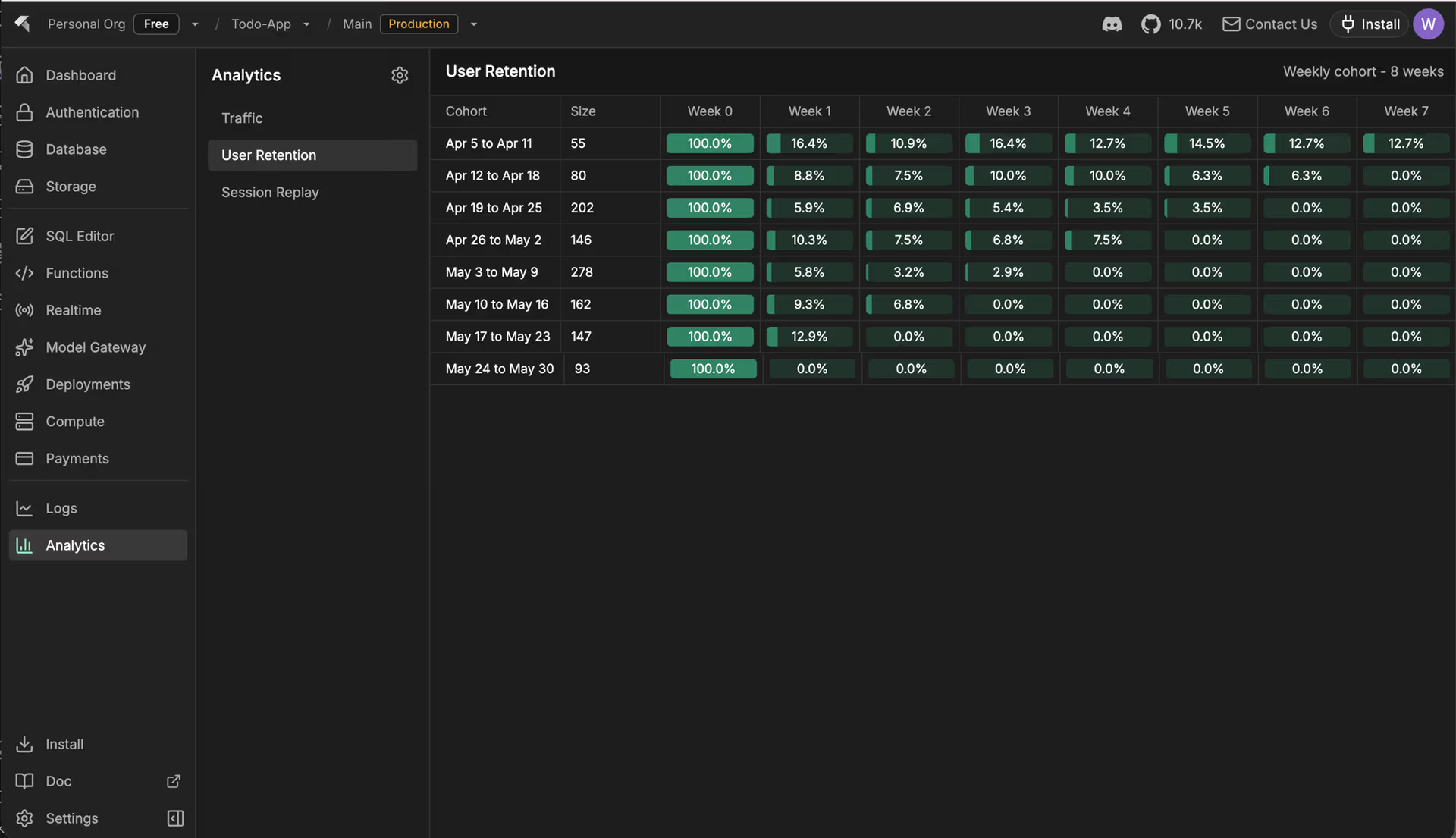
User Retention shows a weekly retention cohort based on $pageview events.
Session replay
Session Replay lists recent recordings. Open a recording in a modal to use the PostHog player without leaving InsForge.
Step 3: Send events from your app
Connecting the dashboard does not instrument your application. You still need a PostHog SDK to capture product events.
- In Analytics Config, open the Setup Prompt tab.
- Copy the one-line prompt into Claude Code, Cursor, or another agent that runs the InsForge skill. The skill points to the PostHog SDK installation wizard, which detects your framework, installs the SDK, and configures it with your project token.
For headless or CI setups, run:
This runs the same setup flow from the terminal.
Next steps
- Capture events and identify users so retention and funnels reflect real product usage.
- Set up embedded analytics in your own product if you want a similar in-app analytics experience.
- Read the provisioning API docs if you are building a partner integration like InsForge.